Showing posts with label ftp server. Show all posts

Wednesday, December 21, 2022

MX Linux Samba (or maybe not) SSH Is Awesome

01-05-2024 I think I'll jump ship on my default Linux distro. MX is crisp, fast and I liked the idea of not bowing to systemd but systemd is the way Linux is going ao might as well get used to it. Mint is a suitable landing place.

There may be some reason to use a Linux distro other than MX but I can't think of a good one.
OK, hacking but other than that . . .
So, you need to transfer files from and to Windows and Linux . . .
. . . or maybe from Windows to Windows and Windows network just doesn't work?
I'll do anything to keep from plugging in a flash drive 😎

MX makes Samba easy, sort of - with these hints.
sudo mkdir -p /home/share
(I tried mkdir in the user dir but couldn't change permissions)
sudo chmod -R 0777 /home/share
sudo chown -R yourname /home/share
Check Shares    sudo smbstatus --shares

Run MX Samba setup and point to share
sudo service smbd restart
sudo service nmbd restart

I can't always get to Windows network from MX. Yes, it is painful.

When logging on from Windows to Linux 
Try this . . . If Windows rejected credentials
Use your Microsoft email address
User:MicrosoftAccount\me@email.com
Example: you are Bob and your Microsoft email is BobBarker@live.com and your local PC password is 1234
Enter Bob/BobBarker@live.com - 1234
It works even if you are running Windows with local account.
I know - It's crazy

If all else fails or instead of suffering . . .
Linux to Windows
Xlight server on Windows (simply the easiest ftp server)
Filezilla client on MX or any Linux
or . . .
Windows to Linux
"sudo service ssh start" on MX (clear port 22 on firewall) if ssh not installed, do it.
(Doing ssh -V gives result but server needs installation anyway)
WinSCP on Windows
*** SSH may need to be installed even in MX
sudo apt update
sudo apt install openssh-server
sudo service ssh start (as opposed to system d "sudo systemctl start ssh")
No need to enable on MX it starts at reboot (I think). If not see auto start below.
MX manual says:
Start or restart the ssh daemon as root with the command:
/etc/init.d/ssh start
To auto start at boot:
Session and Startup and add /etc/init.d/ssh start
You may need to edit the /etc/ssh/ssh_config
sudo nano /etc/ssh/ssh_config
After config edit . . .
sudo service ssh restart
To check if ssh running
sudo service ssh status
and . . .
Remember to either turn off the Firewall
sudo ufw status

Or allow port 22
sudo ufw allow ssh
or
sudo ufw allow 22/tcp
or
Use the GUI

Or use a python simple server
Or just use . . .
AnyDesk is often an option depending on the Linux distro.

To sum up a quick setup
sudo apt update
sudo apt install openssh-server
sudo service ssh start
sudo ufw allow ssh
sudo nano /etc/ssh/ssh_config
sudo service ssh restart

Bonus:
1. I don't know why first 10, 15, 25 things to do in xyz-linux never mentions it but . . .
sudo apt install fsearch (it's everything search for linux)
2. Need Linux for your Ventoy drive? Make a snapshot ISO after you get MX updated and just the way you like it and drop the ISO on your Ventoy drive.
3. This is turning into an MX tutorial. This video is full of MX setup info.

In Mint
to install ssh sudo apt install openssh-server to check if enabled sudo systemctl is-enabled ssh if disabled do this sudo systemctl enable ssh sudo systemctl start ssh sudo systemctl status ssh firewall sudo ufw allow ssh sudo ufw status verbose !! Be sure to edit sshd_config port 22 & authorization

Monday, August 15, 2022

Xlight FTP Server

Windows network sharing is fine but maybe you don't want to bother setting it up and then removing the share. Or maybe you are on Linux and Samba is being difficult. FTP is a good option.

I don't use an FTP server often and forget how to set it up. This is simple but here it is.
No install necessary - stand alone.
 
Start Xlight and add a server. No need to change the Dynamic IP.

You can check the actual IP by clicking the drop box arrow.

The server list will show IP 0.0.0.0 unless you actually choose the actual IP but it will work fine.
It is handy to choose the actual IP to always see the connection address.

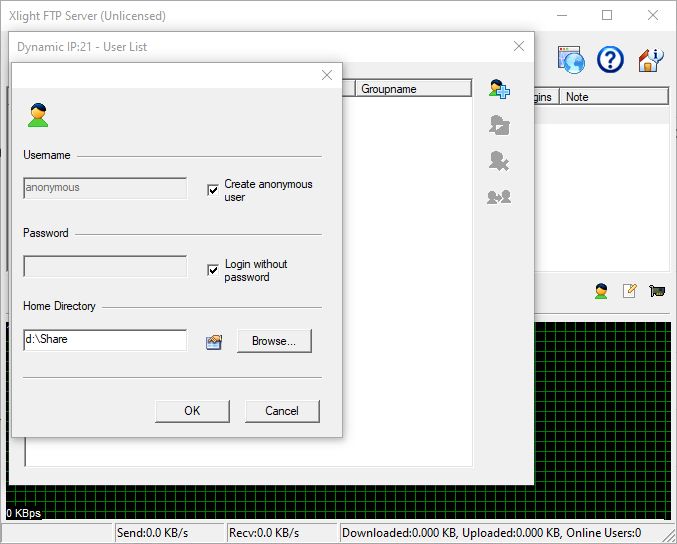
Click the guy in the top menu and set up a user and folder.
Anonymous and no password works fine or use a name and password.


This is where you set up login, password and home directory to share.
Anonymous with no password works fine on local network. 

Click the icon next to browse under Home Directory
Xlight defaults to read only so if you need to copy files in both directions "write" needs to be checked.

The "write" setting can be changed later by clicking the guy again, clicking the edit icon on the right, clicking User Path, double click the virtual path.
Wow, that's a lot of clicking.


Access from another PC with an FTP client like Winscp or Filezilla client or
browser "ftp://IP Address:21
Set Winscp to ftp
Install client of Linux (sudo apt install filezilla)


Monday, June 28, 2021

Filezilla Server

 Filezilla Server notes

Why am I fooling around with FTP? I've never bothered before.
This is still a bit slippery because and I doubt I will improve because too many good alternatives exist for my needs.

Most of the defaults seem good.
I set myself as a user and do use a password whenever asked.

During setup choose start service manually and manually start by current user. Two different steps.
You can always change the Filezilla service to manual in Windows Services.

Change port 21 to some other 5 figure port. This is probably unnecessary when using on a local network and not open to the outside.

In the allow/disallow IP section disallow * meaning all
Then allow the specific IPs or range of IPs 192.168.1.1/24 (It has to be in CIDR format which I do not pretend to understand) Use a calculator like this.

Configure passive port range and Windows firewall. Filezilla will warn of being behind NAT. 
I'm not sure the connection worked because of firewall or passive port settings because I did both.
Port
  1. Open up the FileZilla GUI on your server.
  2. Click on the top menu Edit → Settings.
  3. From the tree menu click on Passive mode settings.
  4. Now make sure the checkbox Use custom port range is checked and enter 50100 in the first box a and 51100 in the second.
  5. Click OK
Firewall
firewall.cpl
  1. From the tree, select Inbound Rules.
  2. In the right panel, click New Rule.
  3. A windows pops up, select Port and click next.
  4. Make sure TCP is selected, and enter 50100-51100 in the Specific local ports field.
  5. Hit Next and make sure the Allow connection option is selected. Then hit Next again.
  6. Select the zones where this rule need to be applied (in my case I have selected all the zones).
  7. Click Next and give this rule a recognizable name: Passive FTP Ports - FileZilla.
  8. Click on Finish, and your done.
Filezilla Client worked but WinSCP connected but would not retrieve the directory.
WinSCP works well with SSH

Included in the Windows start menu are Filezilla shortcuts for starting and stopping the server. This is why I do not set up to start the server when Windows starts.

On reason would be Linux to Windows sharing. Another reason to use this would be if Windows networking is being difficult or if you do not want to Windows share a folder but you want or need access to a folder on the network for a specific PC.
But for simple file transfer over a local network Nitroshare is hard to beat for speed and handling large files.  Lanshare is sometimes workable. And I need to remember SendAnywhere 

Reference:
https://johandorper.com/log/filezilla-server-passive-ports

BitLocker

BitLocker: How to Protect Yourself Even If You Don’t Use It Many Windows users (including me) run local accounts and never intentionally ...