Showing posts with label linux. Show all posts

Thursday, July 23, 2026

Installing Linux On Old PC - Avoiding UEFI

I'm leaving this here for now just for reference.
Forget installing Mint on old hardware.

Installing Linux On Old PC - Avoiding UEFI
Why? Because your BIOS doesn't handle UEFI but current installs default to it.

In the Linux live system open Gparted and partition the destination to msdos and fomat ext4

On install: 
Select "Something Else": In the installer type selection, DO NOT choose "Erase disk".  Choose "Something Else" (Manual Partitioning). 

Assign the Partition:
Click on your existing ext4 partition.
Click Change.
Set Use as: Ext4 journaling file system.
Set Mount point: /.
Ensure the Format box is checked

Bootloader Location:
At the bottom, ensure "Device for boot loader installation" is set to /dev/sda (the drive itself), NOT /dev/sda1. 

Ignore the Warning:
When you click "Install Now", it will warn: "No EFI system partition was found."
This is expected. Click Continue. 

Sadly it probably will not boot but at least it is installed correctly.

Fix Grub
sudo mount /dev/sda1 /mnt

(Note: Since you have only one partition, your root is /dev/sda1. If you have a separate /boot, mount that too, but usually not needed for single partition setups).
Reinstall GRUB to the MBR:
sudo grub-install --boot-directory=/mnt/boot /dev/sda

Crucial: Notice the command ends with /dev/sda (the drive), NOT /dev/sda1 (the partition).
If successful, it will say Installation finished. No error reported.
Generate the Config:
sudo mount --bind /dev /mnt/dev
sudo mount --bind /proc /mnt/proc
sudo mount --bind /sys /mnt/sys
sudo chroot /mnt
update-grub
exit

Reboot: Remove the USB and restart.  

Oh No! I don't have an account.

Restart and hold Shift (or press Esc) to see the GRUB menu.
Select Advanced options for Linux Mint.
Choose the line ending with (recovery mode).
In the menu that appears, select root (Drop to root shell prompt).
You will be at a command prompt like root@mint:~#.
2. Create Your User Account
Once you have the root prompt (#), run these commands (replace yourname with your desired username):

Create the user and home directory:
adduser -m yourname

(Follow the prompts to set a password and fill in details. You can press Enter to skip details).
Give yourself admin (sudo) privileges:
usermod -aG sudo yourname

(Note: On some older Mint versions, the group might be admin instead of sudo. If sudo fails, try usermod -aG admin yourname).
Fix Ownership (Critical): Since you installed as root, your home folder might be owned by root. Fix this:
chown -R yourname:yourname /home/yourname

Reboot:
reboot

You should now be able to log in as yourname with full admin rights.

Tuesday, September 19, 2023

MX Linux Printer Settings

MX Linux is great at finding printers but some might need some config.
If you don't use Linux regularly it's easy to forget this.
Open a web browser and go to "http://localhost:631/printers".
Click "Modify Printer" and set following parameters.
- Your device will probably be shown already as "discovered"
- lpd://(Your printer's IP address)/binary_p1       for Device URI
- Brother       for Make/Manufacturer Selection
- Your printer's name       for Model/Driver Selection
Be sure to scroll through the list and select your printer even though it looks like it knows the right model because it was shown as device.

Try a test print

You can always go to the Brothers site and download the deb cups driver and install but it should not be necessary.

My MFC=7840W was a pig to get going until I found the access to the cups admin page and did the above settings.

Previously MX always grabbed the printer and worked without accessing cups admin so I was spoiled.

Obviously, if running in a virtual environment the network can not run NAT or it will not be on the local network.

Thursday, October 28, 2021

Arch Titus

https://github.com/ChrisTitusTech/ArchTitus
This was slick but I will still probably just use Manjaro.

Download Arch
https://archlinux.org/download/
Use Ventoy and copy Arch to the flash drive
pacman -Sy git
git clone https://github.com/ChrisTitusTech/ArchTitus
cd ArchTitus
./archtitus.sh (or type arth and it tab)
Choose main drive not a partition
. . . VirtualBox I had to do /dev/sda
. . . Be sure to set EFI in system
This is EFI currently & I don't know how to make it legacy yet.
User
Password
KDE Plasma type 1 (this did not appear for me)
type reboot (in VB close machine, remove cd, restart)
to enable set resolution in VB install Guest Additions

to install
yay -Syu updates
yay -S (program name install)
yay -Ss (program name search)
yay -Ss (snap to search snaps)
yay -Ss snap | grep installed (to search Installed snaps)
what is snappy?

win + arrow L-R move
win + up max
win + Q quits
win + E explorer
win + B brave


Friday, July 23, 2021

Arch Install

In case I install something other than Manjaro

vset (if in terminal only)
free -h
lsblk
sudo packman -Syy

Install yay
sudo pacman -S --needed base-devel git
$ git clone https://aur.archlinux.org/yay.git
$ cd yay
$ makepkg -si
cd ..
rm -rf yay

paru is available through yay
htop
neofetch
alias
sudo nano ~/.bashrc
alias ll="ls -la"
alias cls="clear"
restart terminal 

Wednesday, July 14, 2021

Pop OS Linux

General
Ctl + Alt + Backspace instant log out
Ctrl + Alt + Delete instant reboot
 
Things to do in the terminal
sudo apt update
sudo apt upgrade
or sudo apt update && apt upgrade
sudo apt dist-upgrade
sudo systemctl enable fstrim.timer
super key type firmware update
sudo apt install neofetch
sudo apt install gnome-tweaks
sudo apt install openssh-server -y
sudo systemctl is-enabled ssh (checks)
sudo nano /etc/ssh/ssh_config
sudo systemctl restart ssh
(sudo service ssh restart) for system5 init
(sudo systemctl restart sshd) for arch
ip a
Set Keyboard Shortcuts
(still trying to decide)
super+e open home (file browser)
super+f open firefox
super+c close window
super+enter open terminal
Alias Commands
type alias shows existing aliases
sudo nano ~/.bashrc
alias cls="clear"
 
MX Linux
~/.conky/MX-KoO/MX-Full is full sysinfo 
F4 drop down terminal

Manjaro
Catfish file search is awesome but slow if the search is deep and only searches down.
I can't change the close window hotkey so stuck with Alt+F4 for now
sudo systemctl start sshd

Friday, September 11, 2020

Linux - My Favorite Today

2021-07-13

My first choice is

Manjaro (what is up with this not available stuff?)
You can get it here

MX or PopOS
. . . The more I use it the better I like all the easy tweaking options. 
MX default boots to init and most command line examples these days is systemd so that can be confusing for less frequent Linux users. MX can boot to systemd but I haven't done it. Not sure wat happens after using init for awhile and then booting to systemd.
Memory Usage is impressive

Mint

Bohdi (if you need small footprint)

I can see why MXLinux is popular
... no systemd so use service like this "sudo service smbd status"
FYI ssh needs to be installed like any Debian
This will also tell you if it is running 
ps aux | grep sshd
Here is a cheat cheat for reference
MX has firewall installed but not turned on. 

Friday, September 4, 2020

Samba Trying To Find The Perfect Simple Setup (It Works)

When logging on from Windows to Linux 
Try this . . . If Windows rejects credentials
Use your Microsoft email address
User:MicrosoftAccount\me@email.com
Example: you are Bob and your Microsoft email is BobBarker@live.com and your local PC password is 1234
Enter Bob/BobBarker@live.com - 1234
It works even if you are running Windows with local account.
I know - It's crazy
Permissions to do anything is another subject but at lease you can see stuff.


Let's be honest . . . If you are setting up Samba like this you only want to share a file or two. 
... A better option might be NitroShare but . . . it can be a challenge to install on some distros and it is out of development.
...... Why not use ssh . . . with Putty and WinSCP (both available with Symenu)

But if you just want this dang thing to work . . . Try this:
*Hint for editing smb.conf
... Nano works fine but running Thunar as root (sudo thunar) works better.

Mint installs a Samba folder containing smb.conf but Samba is not installed out of the box.
This differs with the distributions. Manjaro has Samba installed but no smb.conf. MX has Samba installed and a GUI setup.

Install Samba (sudo apt-get install samba)

Existing smb.conf  [global] settings may need no alterations unless you have long netbios name. 
(Some day I want to figure out what are bare bones essentials in [global] )

Maybe this:
[global]
server string = My Server
workgroup = WORKGROUP
security = user
map to guest = Bad User
name resolve order = bcast host

Just add this to bottom of smb.conf

[share]
path = /home/share
#case sensitive, choose any directory
hosts allow = 192.168.1.0/24
hosts deny = 0.0.0.0/0
browseable = yes 
guest ok = yes 
guest only = yes
read only = no

#the following is not necessary. Permissions on the folder overrides the following anyway.
force user = nobody
force create mode = 0777
force directory mode = 0777

(fyi - I think "guest ok = yes" and "chmod -R 0777" the share folder is the key)

sudo systemctl restart smbd
sudo systemctl restart nmbd
sudo service smbd restart
sudo service nmbd restart
(nmbd will broadcast to the Windows network)

testparm to check for errors

sudo mkdir -p /home/share   (matches choice above)

sudo chmod -R 0777 /home/share

sudo chown -R yourname /home/share

Check Shares    sudo smbstatus --shares

Running smb allows access to share by ip address
Running nmb allows netbios to find and show share in Windows file manager
Starting smb and nmb will not make smb/nmb available on reboot
... Use also "sudo systemctl enable smb" - likewise nmb
...

For Manjaro I copied the Mint smb.conf used above and did the same steps.
I think the Mint smb.conf is the default smb.conf file for Samba in most distributions.
In Manjaro Samba is already installed but not the smb.conf so create one.
You can get the Manjaro smb.conf here if needed but it is not the standard one.
Everything worked. 
Drop Dead Simple
Remember Debian & Arch have different syntax - Deb = systemctl start smbd vx Arch = smb
Remember to sudo systemctl enable smb

...

For PopOS nothing has worked yet. I still always get this . . .
- And yes, this is why I hate Samba


Ok - I got it. I had added a  ;comment in a command line but it didn't show a problem in testparm. You can add a ;comment but on its own line.

I am leaving this link for info but found better way
https://www.youtube.com/watch?v=7Q0mnAT1MRg&t=126s

Caveat = Changes keep happening in Operating Systems. What works today may work tomorrow.
Caveat #2 = Windows 10 likes to add this connection to your "Quick Access" file. If your windows folders don't refresh properly just delete 
%AppData%\Microsoft\windows\recent\automaticdestinations
or try doing standard clear . . .


Additional thoughts -
Permissions and Ownership are critical so chown and chmod familiarity is essential and easy after a few rounds and battles.


Monday, August 24, 2020

Linux Chrome Remote Desktop

 In Manjaro Arch it was easy . . .

1. Search for Chrome Remote Desktop in Software and install

2. Run crd -setup

nano will open up so remove comment for the desktop you want

save and exit

3. Nano will open up again

choose the resolution

save and exit.

Friday, July 17, 2020

Linux SSH

*Be sure to turn off firewall or configure 22 to ssh on Linux.
SSH should be easy to set up but sometimes it is a pain.
 More Detail Here
Here is a bunch of good commands.
https://devconnected.com/how-to-install-and-enable-ssh-server-on-debian-10/

sudo apt-get install openssh-server


Now use 
... Putty
...... WinSCP
......... Or Windows 10 terminal "ssh ip address of Linux" I know, it's crazy.


/etc/init.d/ssh start
/etc/init.d/ssh stop
/etc/init.d/ssh restart

service ssh start
service ssh stop
service ssh restart

systemd
systemctl start ssh
systemctl stop ssh
systemctl restart ssh
systemctl enable ssh

Saturday, July 4, 2020

Simple Samba Conf File

2020-09-05 See This

What a pain in the butt -
 . . . good old reliable twins work
. . . ssh & WinSCP
Unless you are in Mint, etc where setting up a share is easy.
Not sure if Nautlis Share can be used on the others.

Worked fine in Bohdi but not PopOS
...Suggestion - add to the bottom of existion smb.conf instead of replacing smb.conf totally
smb.conf file
[global]
server role = standalone server
map to guest = Bad User
usershare allow guests = guest
hosts allow = 192.168.0.0/16 (basic security but not needed) (192.168.1.0/16 be specific?)
hosts deny = 0.0.0.0/0 (basic security but not needed)

[testfolder]
comment = test folder
path = /home/george/testfolder
read only = no
guest ok = yes
force user = george (not sure needed)
force group = george (not sure needed)

Be sure Windows has smb1 active in features

Monday, June 15, 2020

Remove EFI Dual Boot

The only reason to bother with dual boot is if you can not fit an additional drive into the PC.
Pull the other drives > install Linux to the new drive > hook up the other drives and use the bios boot menu to boot the Linux drive.

https://www.youtube.com/watch?v=sgMu3DYuVYY
This is a video
11:30 is start of remove dual boot entries
Find open drive letter
diskpart
list volume
see fat32
select vol #
assing letter=x
open Task Manager
>file>run.run new task
open drive X
open efi
delete the linux folder
check boot folder for any linux entry
diskpart
remove letter=X
exit

Tuesday, May 26, 2020

Linux - Windows Share

Networking between Windows and Linux can be a pain.
For quick file share use NitroShare
https://nitroshare.net/
For Arch Linux is available on AUR
For Debian it is impossible to find currently 2021-07-10

Maybe better just use ssh and WinSCR FTP (get in Symenu)
Or Filezilla

Sunday, May 24, 2020

Brother Printer Setup Manjaro Arch

On my second setup with and old Brother HL-5250DN things went well without installing anything
Go to Manage Printing > Administration (the online cups setup)
Then the find printers, etc.
Worked flawlessly (sending job to printer takes forever :))

First setup was not so smooth.
You may need to install cups, etc but in the end . . . I needed this
... Get it from pamac with aur support
This will allow printing but only through this app
I can set up the printer but it will not connect.
I suspect I do not yet have the correct driver.
I can not get yay installed to find the driver

... a work in progress
I did uses these commands:
sudo pacman -S cups manjaro-printer sudo systemctl enable org.cups.cupsd.service sudo systemctl start org.cups.cupsd.service sudo pacman -S system-config-printer

There are multiple ways to find the IP of the printer.
The Brother app installed above is one.
Another is nmap
example sudo nmap -sP 192.168.1.0/24
You would need to find your own IP first to know the range to enter
example: ip addr show


This gets a little crazy.
But installing printers, even on Windows, can get crazy.
As usual, I didn't document every rabbit trail so not sure what was all necessary.
In the end . . . it may have been this that actually worked.
Notice that the Brother MFC printer always showed but when I chose it, and it appeared to be installed, it would always show no connection.
... When I chose the Internet Printing Protocol IPP method and manually entered the ip address, everything worked.
... I did install yay and tried to install the proper driver. It may have installed but that part was mysterious. The PKGBUILD of yay was even more mysterious but yay is available to me now.

Wednesday, May 20, 2020

Linux GUI Apps - SSH - Commands

#1. Find out which init system your Linux uses
init --version
#2. Find out your IP on the local network. You will need IP, user name, and password.
ifconfig (depricated and may not work because "net-tools" is not installed)
 use this instead
> > > ip a
On Windows use WinSCP to access the Linux server (I use portables via Symenu)

Terminal commands vary depending on if systemd or SysVinit. (Or some variation thereof)
Most all Linux versions have ssh service included. Verify by doing this.
ssh -V (check if installed)
The server is likely not installed so install it.
sudo apt install openssh-server -y

Verify if the service is running
sudo service ssh status
This is how to start the service
sudo service ssh start
or
sudo service ssh restart
Edit sudo nano /etc/ssh/ssh_config file and not the sshd_config (if it exists)
remove # on port 22
remove # on PasswordAuthentication yes
Check if server is running
ps aux | grep sshd
Check is server is listening on port 22
telnet localhost 22

***From here down needs editing. Maybe next time I set up a systemd.

... Start SSH
- In systemd
sudo systemctl start ssh
sudo systemctl start sshd (In arch)
... Check to see if enabled
sudo systemctl is-enabled ssh
sudo systemctl is-enabled sshd (In arch)
or
- In SysVinit (SystemV)

(check linux ip ifconfig)
Edit sudo nano /etc/ssh/ssh_config file and not the sshd_config
remove # on port 22
remove # on PasswordAuthentication yes
sudo systemctl restart sshd
sudo systemctl status sshd
use Putty and/or WinSCP 
ssh_config should look like this
check ip a
In WinSCP the connection is SCP not SSH

Obviously you use keys outside a closed network.


Should be able to install through apt-get
eg. sudo apt-get install hardinfo

Notes:
Update
sudo pacman -Syysudo
sudo pacman -Su

Find ip use "ip a"
ip route list
or install Nutty

Root file access in Manjaro
sudo thunar

OpenSSH on Arch
(Why care? Setting up VB using SSH in Windows for ease copy paste commands.)
sudo pacman -S openssh
sudo systemctl status sshd.service
sudo nano /etc/ssh/sshd.config
sudo systemctl enable sshd.service
sudo systemctl start sshd.service
(stop, restart, etc.)
On VM use bridged adapter for useful IP

... Then Putty on Windows should have access to (user-name@IP)

Good Links for ssh
https://linuxhint.com/ssh_virtualbox_guest/
http://www.tuxfixer.com/configure-ssh-service-in-manjaro-linux/
https://www.christitus.com/ssh-guide/

MX Linux does not use systemd so the systemctl commands don't work.
I have no idea how to restart ssd or do commands that use systemctl.
Commands
...This is one of the irritating things about Linux. Answers found online are often for a version you are not using. For instance alias
HowToGeek explains alias cls=clear
This is great but to make it survive a closed terminal he says add the command to the
... .bash_aliases file
,,,  but in Mint the file is /home/george/.bashrc
The List
alias
ps

Friday, August 17, 2018

Manjaro Setup

2020-09-05 See This
I suppose if you are going to network, you are somewhat geeky. But Linux is a moving geek target. Turn your back and things change. Arch Linux is the king of change but Manjaro seems to keep information reasonably up to date. Good luck.

Consider Anydesk in the AUR if you need quick and brief transfers.
Anydesk is a great remote desktop.

Linux to Windows networking can be a mystery.
However, Windows to Windows networking can be a mystery.
The setup below worked as of 2018-08-19.
One Win10 machine was driving me crazy - But I discovered I could not access it with Win either.
Don't be too quick to blame Linux. Check to see if you can connect Win to Win.

One problem was not seeing the PCs listed in Network: (SMB Client was not checked) Then all Windows machines displayed. (I had disabled SMB1 because of insecurity warnings. How then can we see the network? Sure IP addresses work but . . .)
Windows has removed SMB1 on recent versions and this is supposed to be the fix:
“Start the “Function Discovery Provider Host” and “Function Discovery Resource Publication” services
But I needed to start SMB1 - it was on my system but turned off.
One PC was driving me crazy. My user name is always "George". But I kept getting a credential error. And lookie here . . . George
But Windows does not care about this. Windows uses your profile name which may or may not be the same. Go to the Windows>Users folder and find what your profile folder is named.
Well hot dang . . . I'm George-Lenovo. And that was the answer.

Switch to Fastest Mirror
sudo pacman-mirrors --fasttrack

Update Manjaro
sudo pacman -Syyu

Install AUR package manager
sudo pacman -S yaourt (this has not changed to yay)

Install Web Browser of Choice
yaourt -S brave
sudo pacman -S chromium

Install/Activate Firewall
sudo pacman -S gufw

Samba
sudo pacman -S samba gvfs-smb thunar-shares-plugin
sudo pacman -S manjaro-settings-samba

systemctl enable smb nmb
systemctl start smb nmb
Restart . . .

You should now be able to access Windows shares.
Your Windows user name is case sensitive and is your profile name and not Win log on name.

To allow Windows to access Linux share . . .

Terminal (I assume your name is George :)
sudo smbpasswd -a george
sudo groupadd smbusers
sudo chown :smbusers /home/george/Share (case sensitive)
sudo usermod -G smbusers george

Add this to smb.conf
[Share] 
        comment = linux share
        force user = george
        browseable = yes
        path = /home/george/Share
        guest ok = yes
        read only = no

If Windows is showing PCs in the Network Folder that are no longer available  . . .
Open an Admin Command Prompt . . .

ipconfig /registerdns
   
Wine
sudo pacman -Sy
sudo pacman -S wine-staging
sudo pacman -S giflib lib32-giflib libpng lib32-libpng libldap lib32-libldap gnutls lib32-gnutls mpg123 lib32-mpg123 openal lib32-openal v4l-utils lib32-v4l-utils libpulse lib32-libpulse alsa-plugins lib32-alsa-plugins alsa-lib lib32-alsa-lib libjpeg-turbo lib32-libjpeg-turbo libxcomposite lib32-libxcomposite libxinerama lib32-libxinerama ncurses lib32-ncurses opencl-icd-loader lib32-opencl-icd-loader libxslt lib32-libxslt libva lib32-libva gtk3 lib32-gtk3 gst-plugins-base-libs lib32-gst-plugins-base-libs vulkan-icd-loader lib32-vulkan-icd-loader cups samba dosbox

https://wiki.manjaro.org/index.php?title=Using_Samba_in_your_File_Manager

* * * Anydesk remote desktop is also available in the AUR repository. The display is crazy in Virtual Box connecting to host but works fine when connecting to other machines.

Sunday, July 23, 2017

Linux Mint 18.2 Fix Video Error

Installing Mint on Virtual Box will give this video error. Getting rid of it is easy but maddening to find. I have always just lived with it but decided to finally hunt down the fix.

First you need to uninstall the already installed guest additions included with Mint.

Then open the guest additions CD through "Devices" in the menu. The CD will appear on the desktop. If you double click the CD you will see the contents.

Now in Terminal cd /media/user/ to that folder and perform the run command.

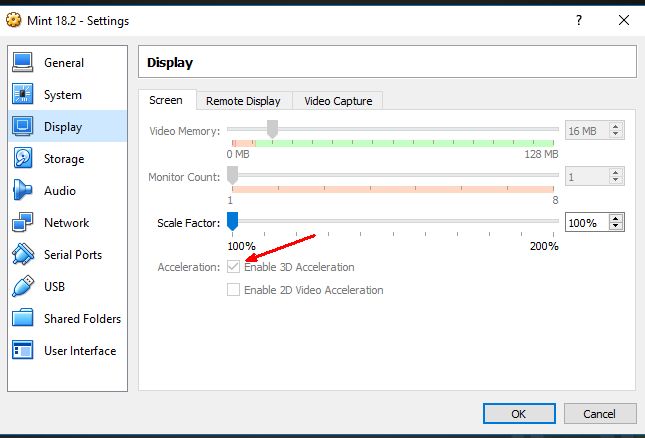
Then go to "Display" in settings and check "Enable 3D Acceleration. I believe you will need Mint shut down to change this setting. You can see the setting with Mint running but it is grayed out. This step is left out of the instructions I found on line.

Rebooting should now remove the error.


Sunday, September 4, 2016

Samba Setup or Python Share


2018-08-14 Edit:
For what it's worth - Use Manjaro and save yourself some headaches.
(The http server only makes files on linux available and does on receive files)
Python file server in VirtualBox
Manjaro has Python 3
Create a Share folder and add a test file.
Within the Share folder open Terminal and enter the following
python -m http.server
This starts the server
Terminal must stay open while the server is running.
To stop the server, enter Cntl-c
Open a second Terminal and find the IP of machine

ip addr
It should look like this.
The IP here is 192.168.1.38 and the default port is 8000
To get this, the machine's network adapter needs to be set as "bridged" instead of NAT
Now on the Windows host and through the browser you can access the Linux Share server through the IP 192.168.1.38:8000
Using a Debian system with Python 2 the command is python -m SimpleHTTPServer
I Debian has Python 3 then python3 -m http:server works

This is primitive but you can get files from the Linux machine and onto the Windows machine without a Samba setup.


On the other hand if you are running Manjaro, Samba setup is simple
XFCE Desktop do this
sudo pacman -S samba gvfs-smb thunar-shares-plugin
Then this
sudo pacman -S manjaro-settings-samba
Networking should now work.
So far I can only access Windows from Manjaro but not see Manjaro from Windows.
But I can move file both ways.

Here is the documentation
https://wiki.manjaro.org/index.php?title=Using_Samba_in_your_File_Manager

Below are some previous notes on Samba
After all the fooling around this works both ways Win - Linux share.
Some of the lines in smb.conf may not be needed. I hope to set up again with default smb.conf altered and see results. I think my problem was stuff before smb.conf and permissions of 0755. I may have omitted sudo on some syntax the requires it. This is drop dead simple.

Install Samba
mkdir /home/george/share
cd /home/george/share
touch testfile
ls
sudo smbpasswd -a george
sudo groupadd smbusers
sudo chown :smbusers /home/george/Share (case sensitive)
sudo usermod -G smbusers george

cd /etc/samba
ls
cp smb.conf smb.conf.orig
sudo nano smb.conf                        
This works both ways win & linux
[global]
server string = Manjaro
workgroup = WORKGROUP
security = user
map to guest = Bad User (not sure this is necessary)
name resolve order = bcast hosts wins

[Share]
        comment = linux share
        force user = george
        browseable = yes
        path = /home/george/Share
        guest ok = yes
        read only = no
        create mask = 0755

sudo systemctl restart smbd.service
sudo systemctl restart nmbd.service

Best Instruction Here
https://www.youtube.com/watch?v=CnYTRFTkhNo

If you want a faster server setup (But Samba is easy enough)
Quick Manjaro share with Windows, phone, tablet
On PC to shareopen a terminal in the folder you wish to share.
python -m http.server
To determine ip type ip addr

On PC wanting access
http://the IP of the sharing computer:8000

Sharing from other systems with your Manjaro computer with Python2
python -m SimpleHTTPServer
python -m http.server 9000 (or 8000 etc.)
Will work as long as terminal open
Stop with
CTRL+c

Creating a permanent file server
pacman -S python2-twisted
twistd web --path . --port 8000
If you are comfortable with using the default port 8080 It will be enough to simply type:
twistd web
To stop this server you can type:
kill `cat twistd.pid`

Instructions here:
https://wiki.manjaro.org/index.php?title=Sharing_files_in_a_Network_-_the_easy_way

Of course none of this works in Mint now. You can't even restart smbd with the old commands. What crazy crap. Trust me. Linux will never remain consistently usable for normal humans.


Sunday, June 26, 2016

Debian Linux

I gave Debian Linux live a shot and was impressed with the easy connection to a Windows network.

Debian does not contain the wifi drivers of Linux Mint so that could be frustrating if running live.
Here is how to look for the drivers:
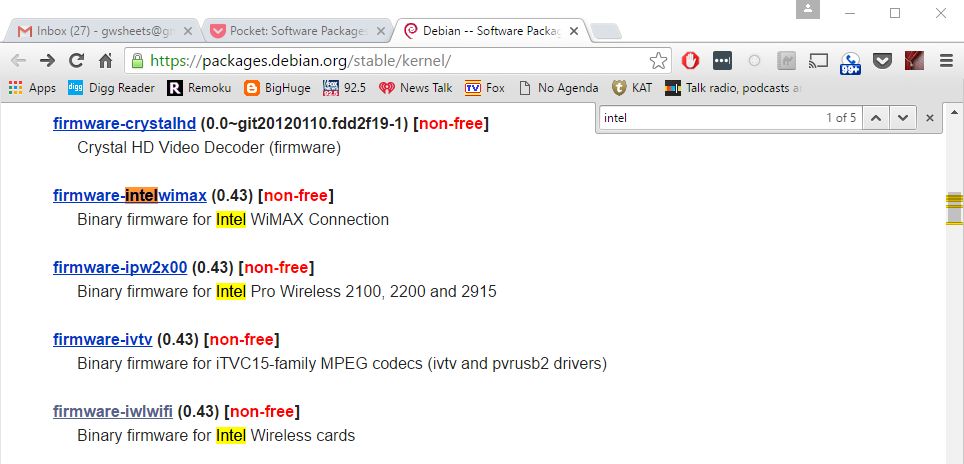
https://packages.debian.org/stable/kernel/
Use novice users would not expect wifi drivers to be in the kernel section.
Once in the kernel section use cntl-f and search for your wifi adapter's name.

Open that and search again for specific model

Once you have verified the correct driver'a name you can install it through terminal.
apt-get install firmware-iwlwifi


Monday, February 22, 2016

Arch Linux


Linux Mint is my go to distribution for Linux. It simply works out of the box and is less likely to break as time goes on if you stay reasonably withing the Mint repositories.

I have always been tempted to build an Arch distribution from scratch and finally got around to it - well, sort of. In Virtualbox I got almost through the "from scratch" process and ran into a couple questions on the Grub install. I had to leave the machine and was not able to get it back up to finish the setup. The best guide currently is here. Forget the "Beginner" section on the Arch site. It simply is not helpful unless you already know the terminal commands. If I had been using the 3rd party guide, I would have had my questions answered on the original install.

So I took the next route with Architect Linux installer. It basically takes you through the steps of Arch setup and automates the terminal commands in answer to questions. Purist Arch people would hate it but once you go through a "from scratch" you know basic procedures. Torturing yourself further is no advantage.

The Architect Linux installer worked very well. The one place that needs caution is the "refresh pacman keys". This takes forever and the terminal sits forever. You must wait for the update to complete or you will have problems with future installs. There may be a way to update the keys after install but I don't know what it is. Currently here is the best guide for Architect Linux installer.

My Architect Linux install worked very well and I started tweaking this and that. Then I questioned why I would keep spending time trying to get this scratch install look and act like Manjaro. Why not just install Manjaro Xfce and go on with life? But I did learn a few things by doing the from scratch install so all was not wasted.

After install this is helpful:

Install yaourt on Arch Linux
sudo mousepad /etc/pacman.conf
add this to the end of the file:
[archlinuxfr]
 SigLevel = Never
 Server = http://repo.archlinux.fr/$arch

 Save the file and then open terminal and enter:
sudo pacman -Sy yaourt
sudo pacman-db-upgrade && sudo pacman-optimize && sync

Good video on tweaking Xfce (4 of them)

Stuff
Remove program, dependencies and settings
 sudo pacman -Rns (program name)
Install Pamac sudo yaourt pamac (many installs and y/n entries)
Engrapa archive manager seems not to work
sudo pacman -S gtk-theme-config (good theme tweaker)
sudo pacman -S leafpad (actually mousepad works to edit in root anyway)

Here are my notes for scratch install: (works but not desktop yet) yaourt installed but not work

Install Arch to virtual drive
We will be making and using one disk.
The disk will be sda
The single partition will be sda1
$ ping google.com
cntl+z
$ dhcpcd (write down the adapter name)emp0s3
$ fdisk -l (to see the existing partitions)
 (you can pipe |less to scroll up/down)
use cfdisk (to partition)(by far easiest)
 choose "dos"
 remember to set root partition to "boot"
 quit
$ fdisk -l (again to check)
$ mkfs.ext4 /dev/sda1
$ mount /dev/sda1 /mnt 
(Arch install will make the directories)
$ nano /etc/pacman.d/mirrorlist 
(move first US to top for fastest but not necessary)
 hit Alt+6 to copy the line
 hit Ctrl+U to paste
$ pacstrap /mnt base base-devel
 (this installs Arch)
 you may wish to add grub (xorg-server xorg-server.utils xorg-apps alsa-utils git terminator)
 if need wifi
 (dialog wpa-supplicant)
$ genfstab -U -p /mnt >> /mnt/etc/fstab
 (this tells Arch where to mount and boot)
$ nano /mnt/etc/fstab (check for drive)
$ cat /mnt/etc/fstab
UUID=xxxxxxxx-xxxx-xxxx-xxxx-xxxxxxxxxxxx /          ext4       rw,relatime,data=ordered 0 1
$ arch-chroot /mnt /bin/bash
nano /etc/locale.gen
uncomment the following lines (maybe pick both)
 # en_US.UTF-8 UTF-8
 # en_US ISO-8859-1
$ locale-gen
$ echo LANG=en_US.UTF-8 > /etc/locale.conf
$ export LANG=en_US.UTF-8
$ ln -s /usr/share/zoneinfo/US/Eastern /etc/localtime
$ hwclock --systohc --utc
find computer hostname by $ hostname
(I'm not where to set the computer name originally)
$ echo (computer name) > /etc/hostname
$ nano /etc/hostname (see if it made it)
may need to edit /etc/hosts ???
$ passwd (for root)
$ useradd -mg users -G wheel,storage,power -s /bin/bash (your_new_user)
$ passwd (your_new_us)
$ pacman -S sudo
$ nano /etc/sudoers
then do the following
(# uncomment to allow members of group wheel to execute any command
wheel ALL (ALL) ALL
cp /etc/netctl/examples/ethernet-dhcp /etc/netctl/my_network (change the adapter to yours from the ip output) emp0s3
netctl enable my_network
pacman -S grub (if not installed in beginning)
grub-install /dev/sda
 if block error do --force /dev/das
$ mkinitcpio -p linux
$  grub-mkconfig -o /boot/grub/grub.cfg
$ systemctl enable dhcpcd
exit
umount /mnt
shutdown -P -h now
or reboot
$ pacman -Syy
You should shutdown the virtual machine and take a snapshot.
***This painful experience should get up a working Arch system***
****Now for installing a GUI***
$ sudo pacman -Syu
$ sudo pacman -S xorg-server xorg-server-utils
$ sudo pacman -S gnome gdm
$ sudo pacman -S open-vm-tools
***below not work but gets black screen when enable and start gdm.service 
$ sudo systemctl enable gdm.service
$ sudo systemctl start gdm.service
gdm.service will not start

Saturday, February 13, 2016

Simple Network Share on Linux

Here is a reference video:
https://www.youtube.com/watch?v=jYTrkYfAPIk

ifconfig in terminal to find your ip address
terminal to folder to share
in terminal type python3 -m SimpleHTTPServer --bind 192.168.1.31 8000
obviously change ip to actual
check the port used - something like 8000
open gufw and allow the port on the firewall for tcp
or turn gufw off because this is temporary
other machine type ip:port for the shared machine (http://192.168.1.15:8000)
sever closes when terminal is closed

BitLocker

BitLocker: How to Protect Yourself Even If You Don’t Use It Many Windows users (including me) run local accounts and never intentionally ...